Direct Answer: Edit videos people watch to the end with CapCut, Premiere Pro and DaVinci Resolve: cutting, sound, colour, captions and motion, plus hooks, retention and the platform know-how behind Reels, TikTok and YouTube Shorts.
Tuition Fee
100% Free
Duration & Workload
~10 Hours
Curriculum Depth
12 Chapters · 48 Lessons
Credential Awarded
Verified Certificate
12Chapters
Course outline
Understand what editors really do, master frame rates, resolution and aspect ratios, make sense of codecs and file formats, and choose between CapCut, Premiere Pro and DaVinci Resolve.
What a Video Editor Actually Does12 min
Frame Rates, Resolution and Aspect Ratios13 min
Codecs, Containers and File Formats13 min
Choosing Your Editor: CapCut, Premiere Pro or DaVinci Resolve13 min
Turn an idea into a script and shot list, film sharp, well-lit footage on a phone, record clear audio, and organise every project so editing is fast and nothing gets lost.
From Idea to Script and Shot List13 min
Filming Good Footage on a Phone13 min
Recording Clear Audio13 min
Folders, Naming and Project Setup12 min
Find your way around CapCut on phone and desktop, cut and arrange clips quickly, add auto captions, text and stickers, and use effects, templates and export settings without looking amateur.
The CapCut Interface on Phone and Desktop12 min
Cutting, Splitting and Arranging Clips13 min
Auto Captions, Text and Stickers13 min
Effects, Templates and Exporting From CapCut13 min
Set up projects and sequences in Premiere Pro, use the precise trimming tools professionals rely on, edit at speed with keyboard shortcuts, and organise complex edits with nesting, adjustment layers and multicam.
Projects, Sequences and the Premiere Interface13 min
Editing Tools: Ripple, Roll, Slip and Razor14 min
Keyboard Shortcuts and a Fast Editing Workflow13 min
Nesting, Adjustment Layers and Multicam13 min
Navigate DaVinci Resolve's pages and understand the free and Studio versions, edit quickly on the Cut and Edit pages, get to know Fusion and Fairlight, and keep playback smooth with proxy and optimised media.
The Resolve Pages and Free Versus Studio13 min
Editing on the Cut and Edit Pages13 min
Fusion and Fairlight at a Glance13 min
Proxy Media and Smooth Playback13 min
Control pacing and rhythm, use jump cuts, J-cuts and L-cuts with purpose, cover edits and add meaning with b-roll and cutaways, and choose transitions that serve the story rather than decorate it.
Pacing and Rhythm13 min
Jump Cuts, J-Cuts and L-Cuts13 min
B-Roll and Cutaways13 min
Transitions That Serve the Story12 min
Clean dialogue with noise reduction, EQ and compression, set levels and loudness for online platforms, choose music that fits and stays copyright safe, and use sound effects and ducking to make edits feel polished.
Cleaning Dialogue: Noise, EQ and Compression14 min
Levels and Loudness for Online Platforms13 min
Choosing Music and Staying Copyright Safe13 min
Sound Effects and Audio Ducking13 min
Separate technical correction from creative grading, read waveforms, vectorscopes and histograms, fix white balance and skin tones, match shots, and use LUTs and log footage to build a consistent look.
Correction Versus Grading13 min
Reading Scopes: Waveform, Vectorscope and Histogram14 min
White Balance, Skin Tones and Matching Shots13 min
LUTs, Log Footage and Creating a Look12 min
Design readable text and captions, animate with keyframes and easing, build lower thirds and reusable motion graphics templates, and use green screen, masks and tracking for effects clients ask for.
Typography and Captions That Get Read13 min
Keyframes and Basic Animation13 min
Lower Thirds and Motion Graphics Templates13 min
Green Screen, Masks and Tracking13 min
Write and edit hooks that stop the scroll, apply retention editing techniques that keep viewers watching, understand the differences between TikTok, Reels and YouTube Shorts, and repurpose long videos into strong shorts.
Hooks in the First Three Seconds13 min
Retention Editing Techniques14 min
TikTok, Reels and YouTube Shorts Compared13 min
Repurposing Long Videos Into Shorts13 min
Export with settings that survive platform compression, design thumbnails and cover frames that earn clicks, prepare caption files, titles and descriptions, and use retention analytics to make every next video better.
Export Settings for Every Platform13 min
Thumbnails and Cover Frames13 min
Caption Files, Titles and Descriptions13 min
Reading Retention Analytics and Improving13 min
Build a showreel and portfolio that win work, price editing jobs by video, package or retainer, run client briefs, feedback rounds and revisions smoothly, and grow from solo editor to a small video business.
Building a Showreel and Portfolio13 min
Pricing Video Editing Work13 min
Client Briefs, Feedback and Revisions13 min
Growing a Video Editing Business12 min
Final exam & certificate
01
Topic checks
Each one opens the next topic
02
Chapter quizzes
Each one opens the next chapter
03
50-question final
50 of 100 marks to pass
04
Certificate
Issued instantly, verifiable
One attempt, 60 minutes. If you don't pass, you can retake once after 30 days.
The course guide
How to learn video editing for free: a 6 week plan
16 October 2026 · 10 min read
You can learn video editing for free with a phone, the footage already on it, and two free editors: CapCut for fast short-form work and DaVinci Resolve for serious desktop editing. Learn the basics (aspect ratios, cutting, sound) in the first week, then edit one short video every few days and judge each one by a single question: did a stranger watch it to the end? Software is the easy part. Pacing, clean audio and a strong opening are what separate an editor from someone who knows where the buttons are.
This guide gives you a 6 week roadmap, the free tools worth your time, the mistakes that make beginner edits look cheap, and exactly what our free Video Editing & Short-Form Content course covers, chapter by chapter.
What you actually need to start
Less than you think. A laptop, camera or subscription is not the bottleneck.
You need
Free or cheap option
When to upgrade
Something to edit on
CapCut on your phone
When projects get longer than a minute or two
A desktop editor
DaVinci Resolve (free version)
Studio, only when a specific feature earns its cost
Footage
Your own phone clips
Never, your own footage teaches more
Clear audio
A quiet room and a phone held close
A basic clip-on mic once you film regularly
Music
Platform libraries and royalty free sources
Paid licences for client work
Two honest notes on "free". CapCut is free to use, but some effects, templates and AI features are marked Pro and need a subscription, and using them can block your export or add a watermark. Check before you build an edit around one. Premiere Pro is a subscription through Adobe Creative Cloud, worth paying for once you have client work. The free version of DaVinci Resolve is remarkably complete.
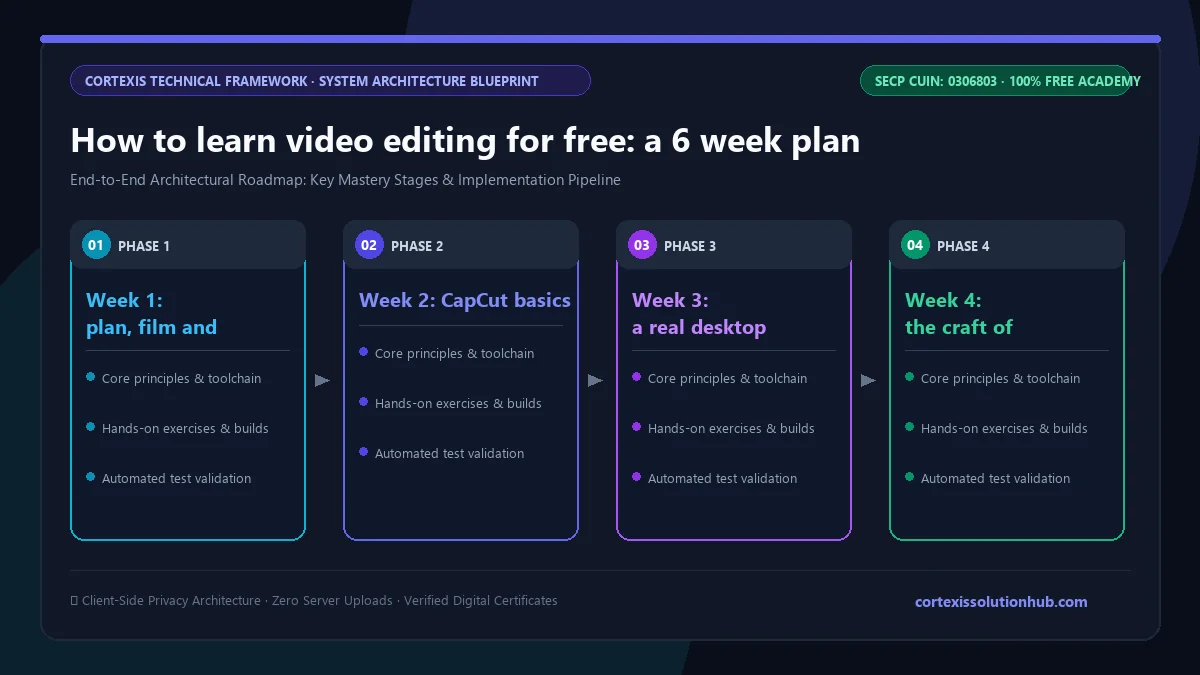
Figure 1: Complete step-by-step architectural workflow and technical execution stages for How to learn video editing for free: a 6 week plan.
Learn the vocabulary before the buttons
Every editor uses the same handful of ideas, whichever app they open.
Aspect ratio. Vertical 9:16 at 1080 by 1920 pixels for Reels, TikTok and YouTube Shorts. Horizontal 16:9 for normal YouTube. Set it before you start cutting, not at the end.
Frame rate. How many images per second. Phones often record variable frame rate, which can make audio drift out of sync on long clips. A fixed frame rate setting, or converting with a free tool like HandBrake, fixes it.
Proxies. Lightweight copies of heavy footage so a modest computer can edit without stuttering.
How to learn video editing for free in 6 weeks
Plan on about an hour a day, five days a week, and edit something real every week.
Week 1: plan, film and organise
Write a short script or shot list before you record. Film on your phone in good light, hold it steady, and record the audio close to the speaker. Then set up folders for footage, audio, graphics and exports.
Week 2: CapCut basics
Cut, split and arrange clips. Add auto captions and correct them by hand, because auto captions get names, numbers and Urdu words wrong. Export, then watch the exported file on your phone from start to finish.
Week 3: a real desktop editor
Move to DaVinci Resolve (or Premiere Pro if you already have access). Learn the core editing tools: razor, ripple, roll and slip. Pick five keyboard shortcuts a week and force yourself to use them.
Week 4: the craft of the cut
This is where edits start to feel professional. Learn pacing, jump cuts, and J cuts and L cuts, where the audio of the next shot starts before its picture or the audio of the last shot carries over. Add b-roll to cover jump cuts and show what the speaker is describing. Use transitions only when they serve the story.
Week 5: sound and colour
Clean dialogue with noise reduction, EQ and compression. Learn loudness: social platforms normalise volume, and the course teaches mixing to around -14 LUFS, a widely used target for YouTube and most social video. Then colour: correct first (exposure, white balance, matching shots so skin tones look natural), grade second. Learn to read the waveform and vectorscope instead of trusting a laptop screen.
Week 6: short-form that performs
Now put it together for Reels, TikTok and Shorts. Write hooks, cut for retention, repurpose a long video into several shorts, export with the right settings for each platform, and read the retention graph to see exactly where people left.
The hook decides everything in short-form
On short-form platforms people decide in moments whether to keep watching. A strong edit with a weak opening rarely gets seen. Three habits fix most beginner hooks:
Cut everything before the point. "Hi everyone, welcome back", walking into frame, adjusting the camera, silence before the first word. All of it goes.
Make the first second work with sound off. Something moving in the first frame, a short bold line of on-screen text, and the spoken hook starting immediately.
Show the payoff first. The finished dish, the renovated room, the final result. Then explain how it happened.
Then keep the promise. A misleading hook loses viewers early and costs trust.
Mistakes that make beginner edits look cheap
Mistake
What to do instead
Using every trending effect and transition
One clean style, cuts by default
Music louder than the voice
Duck the music under dialogue
Uncorrected auto captions
Proofread every caption, especially names and numbers
Wrong aspect ratio, black bars on a Reel
Set 9:16 at the start of the project
Footage from five shots in five colours
Match white balance and exposure before grading
Copyrighted songs in client videos
Licensed or platform cleared music only
Never watching the final export
Watch the exported file on a phone, every time
Also show your edit to someone who has not seen the footage. Where they look away is where your video is too slow.
What editors really do, frame rates, resolution, aspect ratios, codecs, choosing between CapCut, Premiere Pro and DaVinci Resolve
2. Planning, Filming and Organising
Scripts and shot lists, filming good footage on a phone, recording clear audio, folders and project setup
3. CapCut Essentials
The interface on phone and desktop, cutting and arranging, auto captions, effects, templates and exporting
4. Premiere Pro Essentials
Projects and sequences, ripple, roll, slip and razor, shortcuts, nesting, adjustment layers and multicam
5. DaVinci Resolve Essentials
The Resolve pages, free versus Studio, the Cut and Edit pages, Fusion and Fairlight, proxy media
6. The Art of the Cut
Pacing and rhythm, jump cuts, J cuts and L cuts, b-roll and cutaways, transitions that serve the story
7. Sound Design and Music
Cleaning dialogue, levels and loudness, copyright safe music, sound effects and audio ducking
8. Colour Correction and Grading
Correction versus grading, reading scopes, white balance and skin tones, LUTs and log footage
9. Text, Graphics and Motion
Captions that get read, keyframes, lower thirds, motion templates, green screen, masks and tracking
10. Short-Form Content That Performs
Hooks in the first three seconds, retention editing, TikTok vs Reels vs Shorts, repurposing long videos
11. Exporting, Publishing and Analytics
Export settings per platform, thumbnails and cover frames, caption files, reading retention analytics
12. Earning as a Video Editor
Showreel and portfolio, pricing models, client briefs and revisions, growing an editing business
Each lesson has a short quiz, and each chapter ends with a chapter quiz you pass before the next chapter opens.
Who it is for and how long it takes
It suits students who want a creative skill they can sell, people who want to edit for creators or agencies, and small business owners who want their own Reels to look right. You do not need a laptop to start, because the CapCut chapter works on a phone, but the Premiere Pro and Resolve chapters need a computer.
At an hour a day most people can get through the lessons in the planned 6 weeks. Being good enough to charge takes longer, because that depends on a portfolio of edits, not on finishing lessons.
After you complete every lesson and pass every chapter quiz, the final exam opens: 50 questions, 60 minutes, and a pass mark of 50 out of 100. You get one timed attempt. If you do not pass, a retake opens 30 days later with the questions in a new order and the options shuffled. Leaving the page submits the exam, so pick a quiet hour. Pass, and the certificate is issued free.
It is not an Adobe or Blackmagic Design certification, and clients will watch your showreel before they read any certificate.
Ready to start? Open the free Video Editing & Short-Form Content course, film three short clips on your phone today, and cut your first 30 second edit before the week is out.
Questions, answered
05 questions
Yes. CapCut and the free version of DaVinci Resolve are enough to learn every core skill: cutting, sound, colour, captions and exporting.
You can learn the fundamentals on a phone with CapCut, including cutting, captions and exporting for Reels and TikTok. For longer videos, multicam, colour work with scopes and most client projects, you will want a computer eventually.
Start with CapCut if you mainly want short-form content quickly. Learn DaVinci Resolve if you want professional tools without a subscription. Learn Premiere Pro when agency or client work asks for it.
The free course is planned as 6 weeks at about an hour a day. Becoming confident enough to edit for clients usually takes a few more months of regular projects and a showreel you are proud of.
Many people do, editing Reels, YouTube videos and podcast clips for local businesses and international creators. Rates vary widely, so work out your minimum price from how long each video really takes and write down exactly what each price includes.