


How to Use an Image Colour Picker to Get HEX, RGB and HSL Codes From Any Photo
You have a screenshot of a client’s homepage, a photo of a paint chip, or a logo somebody emailed as a JPG, and you need the actual code behind one particular shade. Squinting at it will not get you there. An image colour picker reads the exact pixel you point at and hands you its HEX code, its RGB values and its HSL values, ready to paste into CSS, a design file or a paint order. This guide covers how to pick a colour from an image accurately, which of the three codes you actually want, and the two situations that quietly give you the wrong answer.
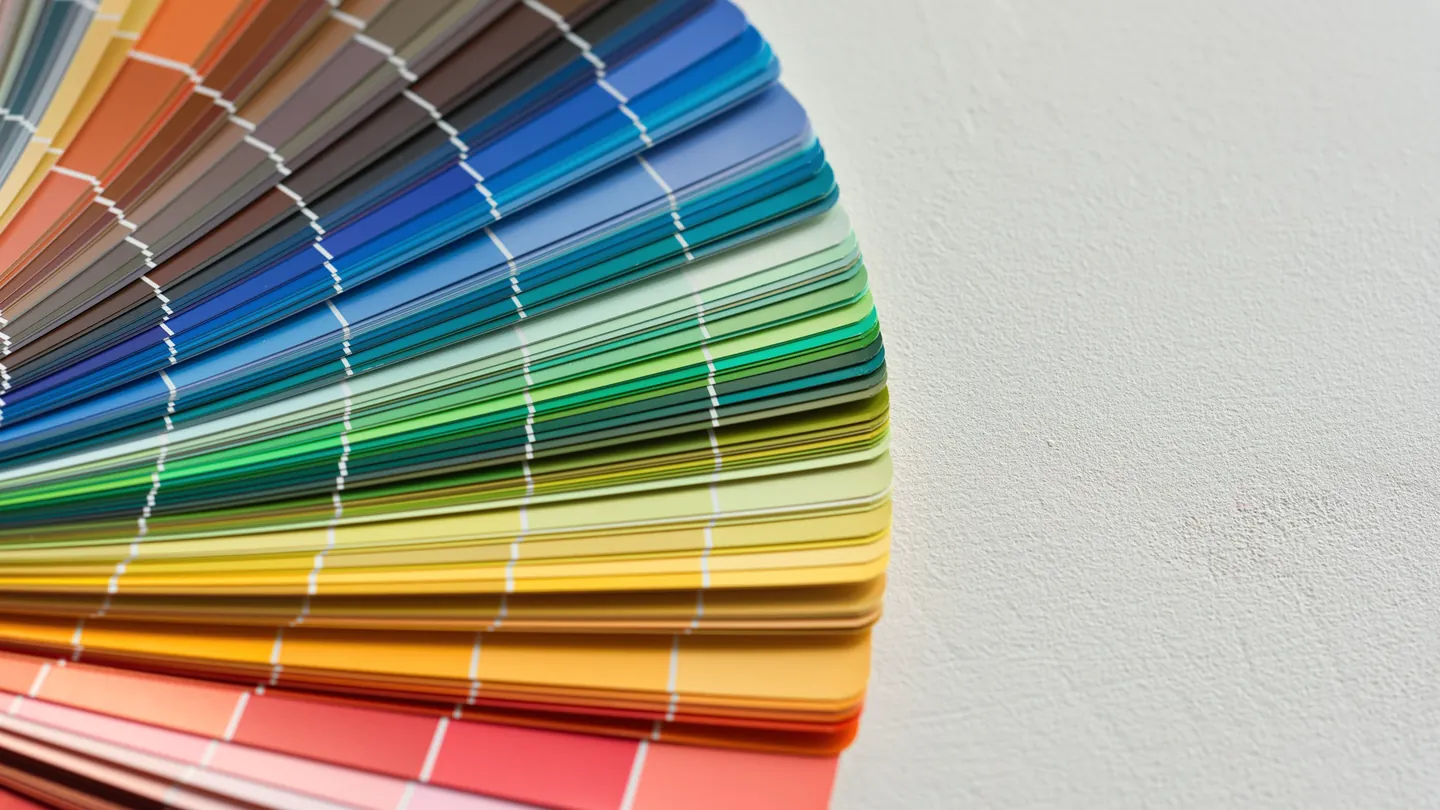
1. What an Image Colour Picker Actually Reads
Every digital image is a grid of pixels, and every pixel stores three numbers: how much red, how much green and how much blue it contains, each on a scale from 0 to 255. That is the whole truth of a colour on a screen. A colour picker from image does one job extremely well — it finds the pixel you pointed at and reports those three numbers in the notations designers and developers actually use.
The tool above gives you all three at once, generated from the same single pixel, so they always agree with each other:
- HEX — the six-character code you paste into CSS, Figma or a brand guideline, written in uppercase like
#F97316. This is the answer to “what is the hex code of this colour”. - RGB — the same colour as three plain numbers,
rgb(249, 115, 22). Useful anywhere you need to do arithmetic on a colour, and the format most photo editors expect. - HSL — hue, saturation and lightness,
hsl(25, 95%, 53%). The human-readable one: change the third number and you get a lighter or darker version of the identical shade.
All three notations are defined in the W3C CSS Color Module Level 4 specification, which is why a HEX code copied here behaves identically in a stylesheet, an email template and a design handoff. They are three ways of writing one colour, not three different colours.
2. How to Pick a Colour From an Image (Step-by-Step)
No account, no email, no install. To get a hex code from an image with the tool at the top of this page:
Add your image
Drop a JPG, PNG, WebP, GIF, BMP or any other image onto the panel, or click to browse for one. The picker opens it immediately and samples the centre pixel so you have a value straight away.
Click the colour you want
Click anywhere on the image. The crosshair reads that exact spot and the big swatch updates instantly, along with all three codes underneath it.
Copy in one click
Click the HEX, RGB or HSL row to copy that value. A tick confirms it went to your clipboard. Paste it wherever you need it.
One detail that matters more than it sounds: the value is read from your image at its full original resolution, not from the shrunk-down preview you are looking at. A 4000-pixel-wide photo displayed at 700 pixels still gives you the true colour of the precise point you clicked. If you want to work on a tighter area first, the image cropper will trim the photo down before you sample it.
Every colour you pick is also dropped into a Recent Colours strip that holds your last ten distinct shades. Click any swatch to bring it back as the active colour — handy when you are comparing two greys and need to flip between them.
3. HEX, RGB or HSL: Which Code Do You Actually Need?
People search rgb to hex and hex to rgb constantly, usually because a tool gave them one format and their software wanted another. Picking a colour here sidesteps that entirely — you get the conversion for free, because all three are produced together. Still, it helps to know which one to grab.
Reach for HEX when
- Writing CSS, HTML or an email template
- Filling in a colour field in a design tool
- Documenting a brand colour for someone else
- You need something short and unambiguous
Reach for RGB or HSL when
- Typing values into a photo editor’s colour dialog
- You need to nudge a shade lighter or darker (HSL)
- Building a tint or shade scale from one base hue
- Working in code that treats colour as numbers
HSL is the underrated one. Because the hue stays put while you move lightness, a single picked colour gives you an entire ramp: take hsl(25, 95%, 53%), drop the last value to 30% and you have a hover state that is unmistakably the same colour. That is far more reliable than eyeballing a darker orange and hoping.
What this image colour picker does not output
Worth stating plainly so you do not go hunting: there is no CMYK conversion and no Pantone matching here. Those are print colour systems, they depend on ink, paper and a colour profile, and any web tool that claims to hand you a trustworthy CMYK value from a screenshot is guessing. The picker also reads the red, green and blue channels only — it does not report an alpha or transparency value.
4. Picking a Colour From Anywhere on Screen
Sometimes the colour you want is not in a file at all. It is in a window sitting next to you: a live website, a video frame, a PDF, an app’s toolbar. Screenshotting it and loading the screenshot works fine, but there is a shortcut.
The Pick Any Screen Colour button opens a full-screen eyedropper tool. Your cursor becomes a magnifier, you click any pixel anywhere on your display, and the value lands in the panel with its HEX, RGB and HSL codes exactly as if you had picked it from an image. It is the fastest answer to “what colour is that on my screen”.
The honest caveat: this screen-wide eyedropper is available in Chrome and Edge. In Safari and Firefox the button will tell you so rather than failing silently, and the fix is a five-second one — take a screenshot, drop it in, and click the pixel. You end up in the same place. If your source is a document rather than a screen, our PDF to JPG converter turns pages into images you can sample, and the extract images from PDF tool pulls out the original embedded artwork at its native quality, which is always the better thing to sample from.
5. Why the Colour Looks Right but Reads Wrong
This is the section people arrive at after picking a brand colour twice and getting two different codes. The picker is reporting the pixel faithfully every time. The pixel itself is the problem, and there are three usual culprits.
JPEG compression smears colours together
JPEG throws away detail to save space, and it does it by blending neighbouring pixels. On a flat block of brand orange you will barely notice, but within a few pixels of an edge — text, a logo outline, a border — the values shift noticeably. Always sample from the middle of a large flat area, never next to an edge. If you have a PNG of the same asset, use that; a compressed PNG keeps its exact colour values in a way a JPEG never does.
Resized and enlarged images invent pixels
Any image that has been scaled has had pixels interpolated — averaged from their neighbours. On gradients and thin details that average is not a colour that ever existed in the original. When you need a true brand colour from a logo, go and find the largest version of that file you can, rather than sampling a thumbnail. The image resizer and image enlarger are for changing dimensions after you have your colour, not before.
Transparent areas read as black
Click the see-through region of a transparent PNG and you will very often get #000000. Nothing has gone wrong — there is simply no colour stored at that point, so the underlying values are zero. If you get an unexpected pure black, you almost certainly clicked empty space rather than artwork. Move your click onto the visible part of the graphic.
Two more things worth knowing. Photographs of physical objects — a wall, a fabric swatch, a product — carry the colour of whatever light was falling on them, so the code you pick describes that photo, not the object. And a display that is not colour-calibrated will show you something slightly different from what the numbers say; the numbers are still correct.
6. Building a Colour Palette From a Photo, by Hand
A lot of people searching for a colour palette generator from image want a machine to look at a photograph and announce its five defining colours. It is worth being straight about what this tool is: a precision instrument, not an automatic extractor. It reads the single pixel you point at and reports it exactly. It does not rank colours, cluster them or decide which ones matter.
That turns out to be a feature rather than a shortcoming, because automatic extraction is famously bad at the thing you actually want. It returns the most common colours, which on a product photo is usually the background and three shades of shadow. The colours you cared about — the accent on the packaging, the exact blue of the sky at the horizon — are outnumbered and get dropped.
Picking by hand takes about ninety seconds and gives you a better result:
- Click your dominant colour — the largest flat area, usually a background or a main surface.
- Click two or three supporting tones from different regions, sampling the middle of each area rather than its edge.
- Click one accent: the brightest, most saturated thing in the frame, however small it is.
- Your five choices are now sitting in the Recent Colours strip. Copy each HEX code out in turn — and copy the HSL of your main colour too, because that is what lets you generate matching lighter and darker variants later.
One practical note: the recent-colours strip is a working scratchpad for the session, not a saved library. Paste the codes somewhere durable before you close the tab. If colour theory is the part you want to get better at rather than the tooling, our free graphic design course covers palette construction properly.
7. Why Cortexis Is the Best Free Image Colour Picker
Plenty of sites will give you a hex colour picker. Most of them wrap it in three ad units and a newsletter popup. Here is what is different, stated plainly enough that you can check every line yourself.
Free, with nothing behind a wall
No account, no email, no credit card and no trial countdown. The picker on this page is the entire product.
Three formats from one click
HEX, RGB and HSL are produced together from the same pixel, so they never disagree and you never need a separate converter.
True full-resolution sampling
The value comes from your image at its original size, not from the scaled preview, so a click on a huge photo is still pixel-exact.
Your images stay private
Nothing you open is stored on our servers, kept after your session, or used for training or analytics.
A screen-wide eyedropper
Grab a colour from a live site, a video frame or any other window without screenshotting it first, in Chrome and Edge.
An honest account of the limits
We tell you where a sampled colour can mislead you — compression, scaling, transparency — instead of letting you find out later.
It sits inside a wider set of free online tools built on the same terms, so once you have your colour you can carry on without paying for any of it — convert an image format with the PNG, WebP and TIFF converter, or wrap a brand colour around a custom QR code.
8. Frequently Asked Questions (FAQ)
How do I find the hex code of a colour in a picture?
Drop the picture into the image colour picker at the top of this page and click the colour you want. The HEX code appears immediately, alongside the matching RGB and HSL values, and one more click copies whichever you need to your clipboard. There is no sign-up and no limit on how many colours you sample.
Is this colour picker free, and do I need an account?
It is free with no account, no email address and no usage cap. Pick one colour or two hundred. Nothing is watermarked, metered or held back for a paid tier, because there is no paid tier.
Can I pick a colour from a website or a video instead of a file?
Yes. Use the Pick Any Screen Colour button to open a full-screen eyedropper and click any pixel on your display, including a live page or a paused video. That screen-wide picker works in Chrome and Edge; in Safari or Firefox, take a screenshot and sample that image instead.
Why does the colour I picked look different from the original?
Usually JPEG compression or resizing. Both blend neighbouring pixels together, so a spot near an edge or in a gradient can read a few values off. Sample from the middle of a large flat area, and use the biggest, least-compressed version of the file you have. Photographs also carry the colour of the light they were shot under.
Does it give me CMYK or Pantone values for printing?
No. The tool outputs HEX, RGB and HSL only. CMYK and Pantone depend on ink, stock and a colour profile rather than on the pixel alone, so a screen-derived value would be a guess. For print work, take the HEX code to your printer and let them match it properly.
Are my images kept when I use the colour picker?
No. Images are never stored on our servers, never retained after your session, and never used for training or analytics. Nothing you open here is logged or queued.
Working on the same image? The image cropper trims it to the part you care about, the image resizer sets exact dimensions for the web, and the PNG compressor shrinks the file without touching its colours. If you would rather learn to build interfaces than only style them, our free full-stack web development course covers CSS colour, design systems and the image APIs behind tools like this one.